Argos
Argos is a free-software tool for creating bootable installer USB drives, in the spirit of Rufus but built to run cross-platform.
Goal
Argos should be able to create installer USB drives for both Windows and Linux distributions, targeting both legacy MBR/BIOS and GPT/UEFI machines.
Requirements
The software should be reliable and fast, and should be installable across a wide range of Linux distributions and, ideally, on macOS as well.
Status
Argos delivers phase 3 (Windows installer media) validated on real hardware
from both hosts and on both firmwares, and phase 4 (a graphical interface)
sharing the CLI’s exact safety guarantees – see the
latest release and
CHANGELOG.md for what shipped.
- Images: Linux ISOs (including isohybrid images), written byte-for-byte
in “DD mode”; and Windows 10/11 installer ISOs, written as a FAT32 volume
with
install.wimsplit intoinstall.swmparts where it exceeds FAT32’s 4 GiB file limit. - Targets: UEFI firmware (
--layout fat32) and legacy BIOS machines (--layout fat32-bios, which carries Argos’s own MBR and FAT32 boot records). Both confirmed to reach Windows Setup’s disk selection on real machines. - Hosts: Linux and macOS, both implemented — including for Windows media,
which needs no
mkfs, no FUSE and no Windows machine anywhere in the process. Windows-as-host is out of scope for now. - Interface: a CLI (
argos) and a single-window GUI (argos-gui, currently macOS and Linux), sharing one implementation of every safety check – there is no separate, weaker path through the window. Shipped since 1.6.0; see Installation below for where each one is available, and Graphical interface for a walkthrough.
See docs/architecture.md for the full design and a
per-area status table, CHANGELOG.md for what shipped in
each release, and CONTRIBUTING.md for how to build and
test the project.
Installation
Homebrew (macOS)
brew install jp-guimaraes/argos/argos
Builds from source (there is no pre-built bottle yet); a Rust toolchain is
pulled in automatically as a build dependency. See
jp-guimaraes/homebrew-argos.
apt / .deb (Debian, Ubuntu)
Download argos_<version>_amd64.deb from the
latest release,
then:
sudo apt install ./argos_<version>_amd64.deb
A single runtime dependency (libc6) – no mkfs.ntfs, no ntfs-3g,
nothing else. See packaging/README.md for how the package is built.
Arch / pacman
Not on the AUR yet – packaging/aur/PKGBUILD is in this repository and
validated in CI, but publishing it needs the maintainer’s own AUR account
(see packaging/README.md). Until then, build it locally:
git clone https://github.com/jp-guimaraes/argos.git
cd argos/packaging/aur
makepkg -si
Pre-built binaries
For any other platform: Linux (x86_64-unknown-linux-gnu) and macOS
(aarch64-apple-darwin, x86_64-apple-darwin) tarballs are attached to each
GitHub Release – download
the tarball for your platform, extract it, and put argos and
argos-helper somewhere on your PATH (both binaries must stay in the same
directory; argos looks for argos-helper next to itself first). Neither
binary is code-signed yet, so macOS Gatekeeper will refuse to run argos on
first launch until you approve it once in System Settings -> Privacy &
Security.
GUI (macOS, .dmg)
Each release also attaches a universal Argos-<version>.dmg (Apple Silicon
and Intel in one file) – open it, drag Argos.app into Applications.
It is unsigned and unnotarized, the same decision as the CLI binaries above
and for the same reason: this project’s macOS install story is Homebrew,
which never sets the quarantine bit that triggers Gatekeeper in the first
place, so the .dmg is a convenience download rather than the primary path.
A downloaded, quarantined Argos.app will be refused on first open. Clear
the quarantine attribute once, from a terminal:
xattr -dr com.apple.quarantine /Applications/Argos.app
or, from Finder: System Settings -> Privacy & Security -> scroll to the bottom, where an “Open Anyway” button appears after the first blocked attempt.
Once running, Argos.app needs Full Disk Access to write to or
restore a removable drive – the same permission macOS requires of Disk
Utility and similar tools. Without it, a write fails right after unmounting
with opening the device: Operation not permitted. From 1.7.1 on, grant it
to the app itself: System Settings -> Privacy & Security -> Full Disk
Access -> “+” -> Applications -> Argos, and make sure its switch is on.
(Up to 1.7.0 the grant had to go to argos-helper inside the bundle, and
on the universal .dmg it could never take effect – see the 1.7.1
CHANGELOG entry.)
After every update, grant it again. Argos is ad-hoc signed, not signed
with a developer identity, so each release is a different program to macOS
and the old grant silently stops matching – the switch stays on, and
writes fail with the same Operation not permitted. The fix takes a few
seconds:
- Quit Argos (Cmd-Q).
- In Full Disk Access, select Argos and remove it with “-”. Remove any leftover argos-helper entries from older versions too.
- Add
/Applications/Argos.appagain with “+”, switch it on, and reopen Argos.
If a stale build of Argos exists elsewhere on the disk (a target/macos/
from building it yourself, an old copy in Downloads), delete it: it carries
the same app identifier, and macOS may open that copy instead of the one in
Applications. See packaging/README.md for the full story and the log
evidence.
Not yet available as a Homebrew cask – see packaging/README.md.
Via cargo install
cargo install argos-cli argos-privileged
Installs both argos (from the argos-cli crate) and argos-helper (from
the separate, privilege-separated argos-privileged crate – see
docs/architecture.md) into cargo’s install
directory (~/.cargo/bin by default), which is what puts them next to each
other. Passing only argos-cli installs argos without the helper binary it
needs at runtime – always install both together.
macOS with Homebrew’s
rustup:cargo installputs its binaries in~/.cargo/bin, and Homebrew’s keg-onlyrustupformula does not add that directory to yourPATH— the officialrustup-initinstaller does, which is why this bites Homebrew users specifically. Ifargoscomes back ascommand not foundimmediately after a successful install, that is all this is:export PATH="$HOME/.cargo/bin:$PATH"Add it to your
~/.zshrcto make it stick.
From source
git clone https://github.com/jp-guimaraes/argos.git
cd argos
cargo build --release -p argos-cli -p argos-privileged
# binaries land in target/release/argos and target/release/argos-helper
Usage
Command line
argos list
Lists every disk Argos can see and whether it looks safe to write to (not a
system disk, removable, on a USB bus). Start here – the device path you
need for the next step comes from this output (e.g. /dev/sdb on Linux,
/dev/diskN on macOS).
argos write path/to/some.iso --device /dev/sdb
# or, equivalently:
argos write --iso path/to/some.iso --device /dev/sdb
argos re-elevates itself (pkexec on Linux where available, sudo
otherwise) to run argos-helper, which does the actual write – expect a
password prompt. Before anything is touched, it prints exactly what it’s
about to do and asks you to type the device path back to confirm:
About to overwrite:
  device:  /dev/sdb (...)
  size:    ...
  image:   path/to/some.iso

This will PERMANENTLY ERASE all data on /dev/sdb.
Type the device path (/dev/sdb) to confirm:
A Linux or Windows installer ISO is detected automatically. Windows media
defaults to --layout fat32 (GPT/UEFI); add --layout fat32-bios for
legacy BIOS/MBR machines instead. Linux ISOs are always written
byte-for-byte (“DD mode”) and --layout is ignored for them.
argos verify /dev/sdb --iso path/to/some.iso
Re-checks a device against the image it was supposedly written from,
without writing anything – useful after the fact, or if write was run
with --no-verify. Unlike write, the device here is always positional
and the ISO is always --iso – write accepts the ISO either way
precisely so a habit formed on one command doesn’t break on the other.
argos format /dev/sdb
Turns an installer stick back into an ordinary one. A file manager’s
“Format” can’t do this on its own: media written for Windows has a
partition sized to its contents, and a Linux ISO written byte for byte
carries the image’s own partition table, so reformatting from the desktop
only touches one small volume and leaves the rest of the stick unreachable.
argos format rewrites the partition table instead – it clears what the
old image left at both ends of the device, writes an MBR with one FAT32
partition spanning all of it, and formats that, ready for Windows, macOS,
Linux, TVs and cameras. It takes seconds, and asks for the device path to
be typed back exactly like write does. --label names the volume
(default ARGOS). FAT32 cannot hold a single file over 4 GiB.
Run argos <command> --help for every flag (--no-verify, --no-eject,
--i-know-what-im-doing for a disk Argos doesn’t recognize as removable
but you’re sure about), or see the man page (argos man, or installed
automatically by the .deb/Homebrew/AUR packages above) and
argos completions <shell> for tab completion.
Graphical interface
argos-gui is a single window over the exact same safety checks as the CLI
above – there is no separate, weaker path through it. See
Installation for where to get it (macOS .dmg/Homebrew,
Linux .deb/AUR); it ships alongside argos and argos-helper in every
package.
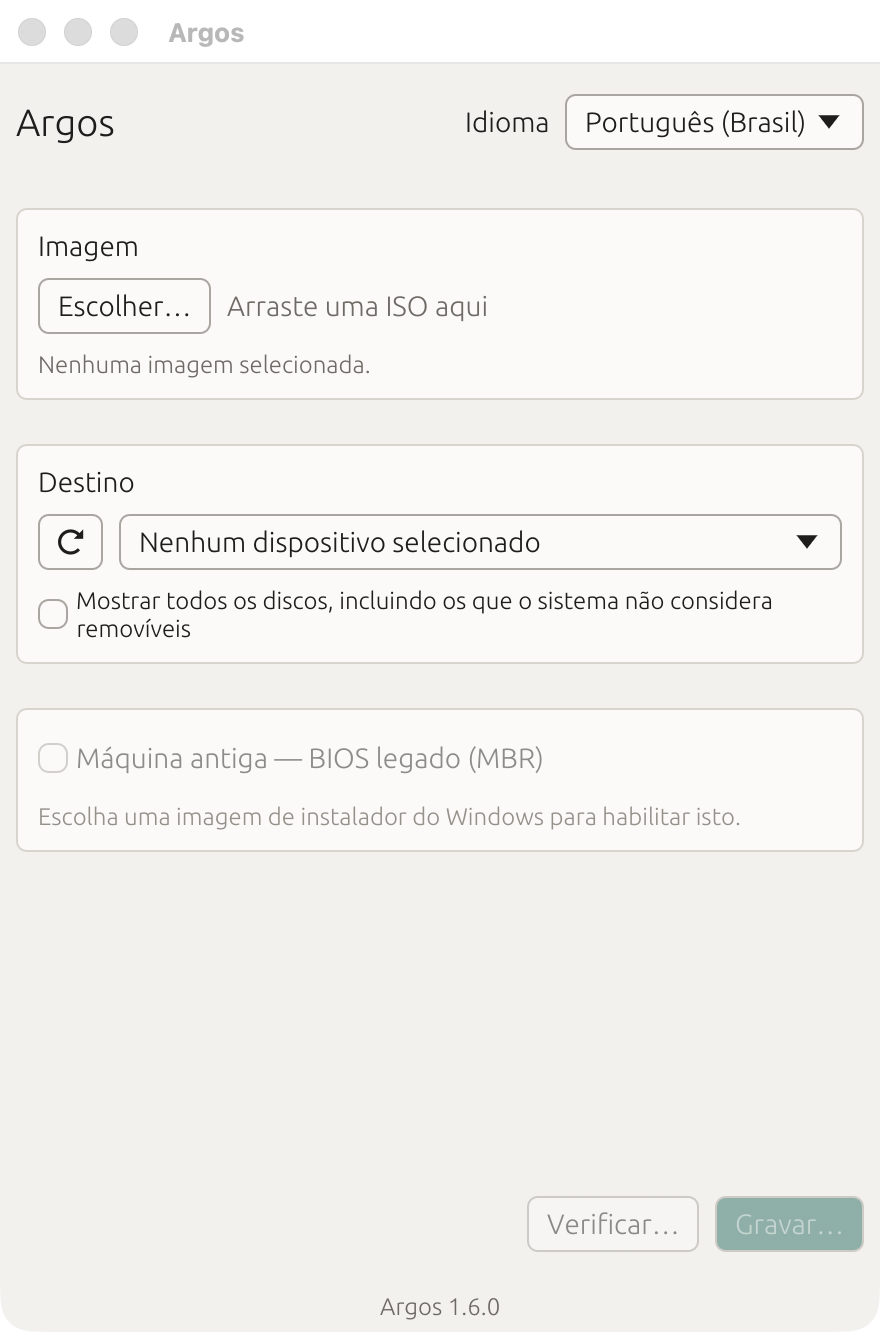
On first launch it detects the system language automatically (LANG/
LC_ALL on Linux, AppleLanguages on macOS) – no setup needed for a
pt_BR lab machine, as pictured above. Automatic detection, English and
Português (Brasil) are also selectable by hand from the menu at the top
right, and take effect immediately, no restart:
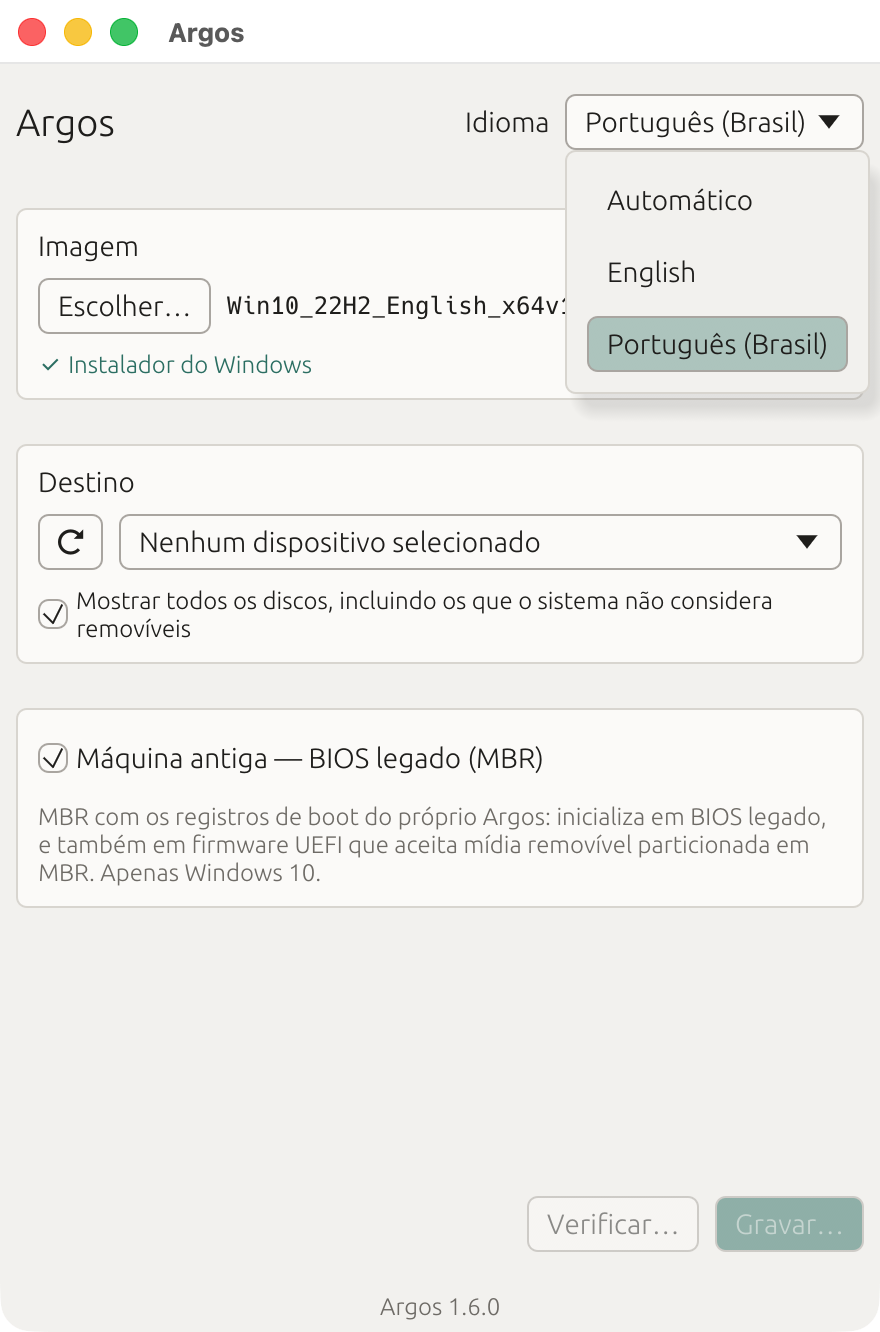
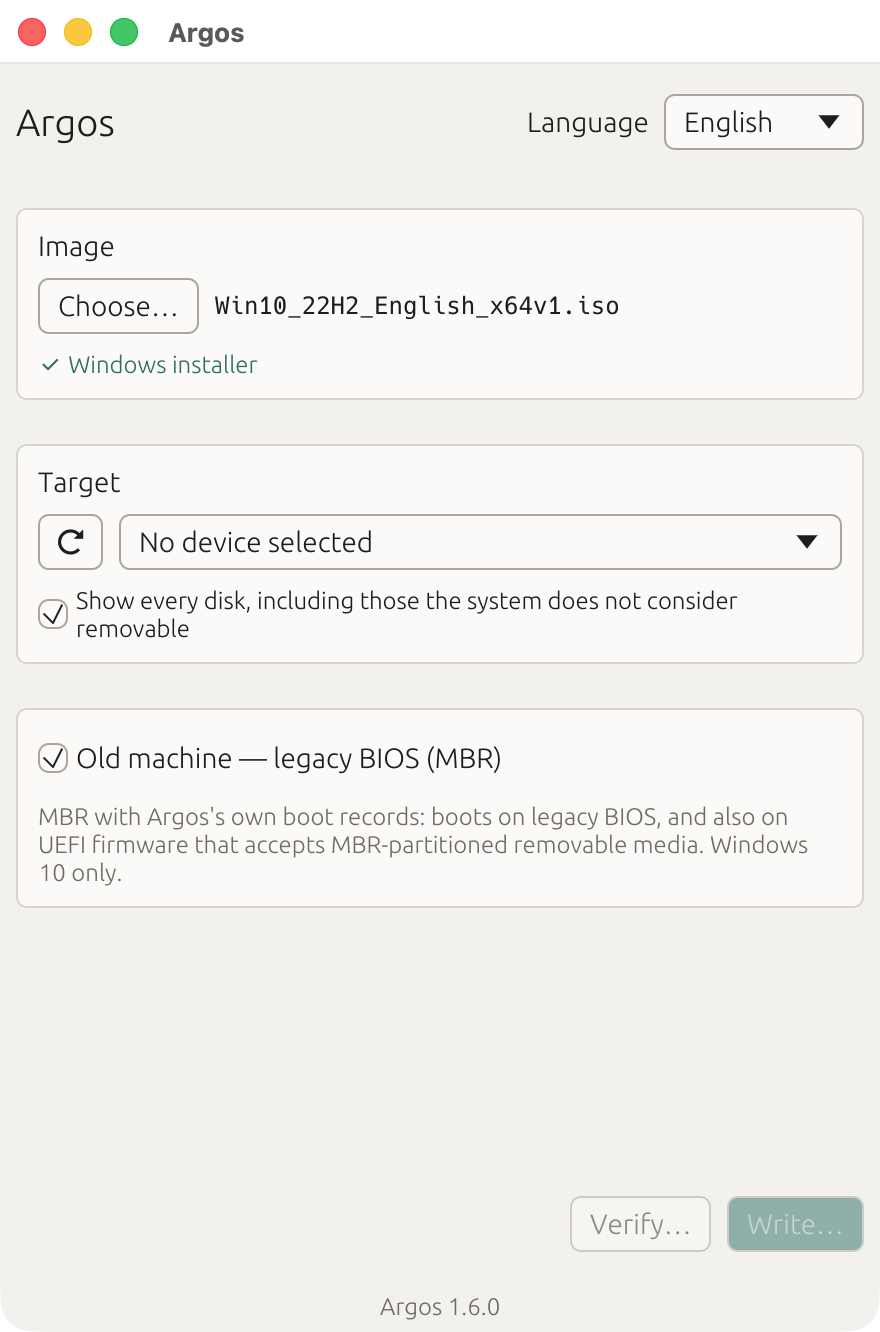
Image: click “Choose…” or drag an ISO onto the window. Argos identifies
it as a Linux image or a Windows installer the same way argos write does,
and shows which:
For a Windows installer, an “Old machine – legacy BIOS (MBR)” checkbox
appears (disabled, with an explanatory line, until a Windows image is
chosen) – this is --layout fat32-bios from the CLI, for pre-UEFI
machines; left unchecked, media is written for UEFI (--layout fat32).
Linux images have no such choice: they are always written byte-for-byte.
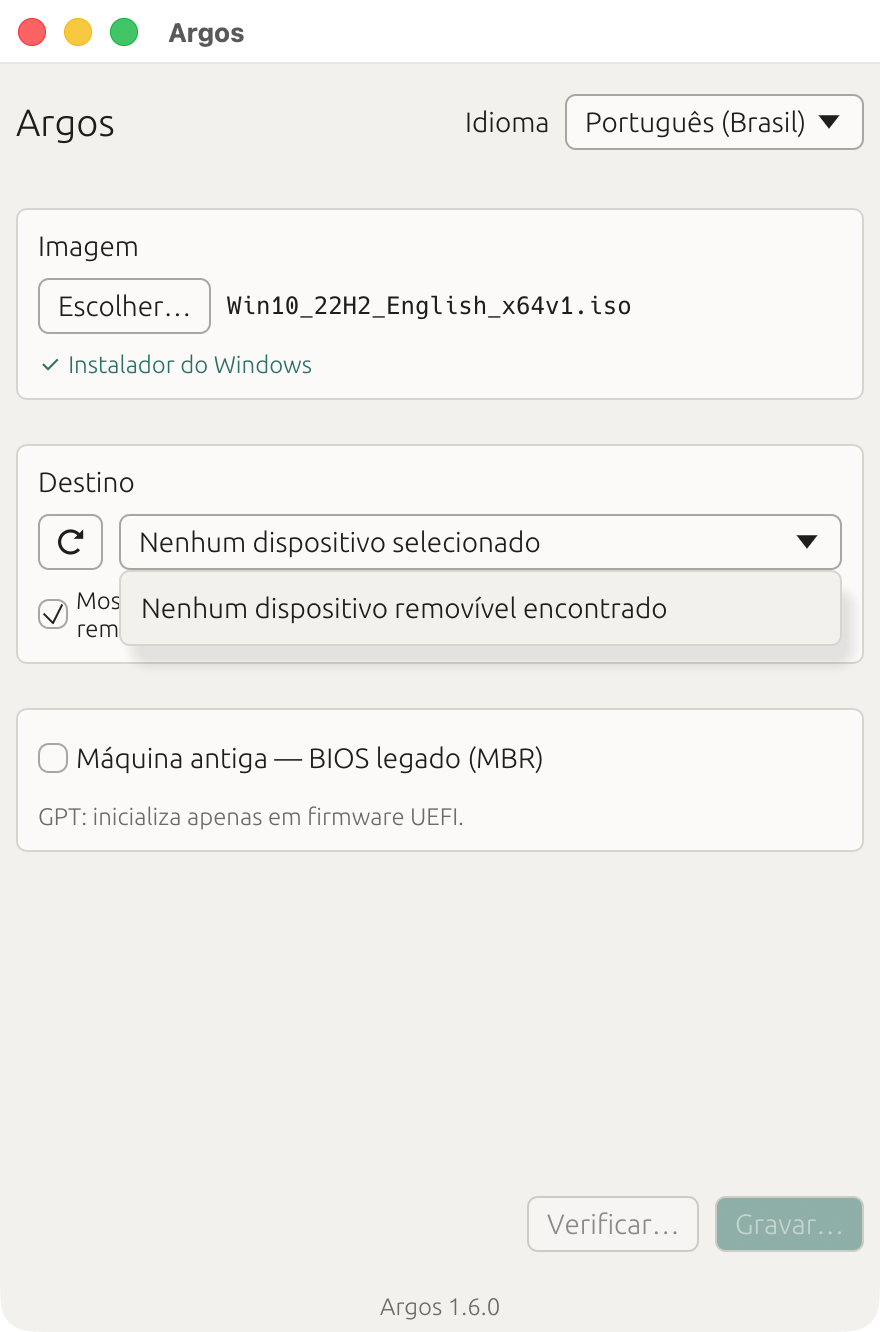
Target: the dropdown lists only disks Argos considers safe to write to (removable, on a USB bus, not the system disk) – a device it refuses is a device you cannot click by accident. “Show every disk, including those the system does not consider removable” reveals the rest for inspection, but existing refusals (system disk, no removable bus) still apply; it doesn’t unlock anything, only widens what’s listed. With nothing plugged in, the dropdown says so plainly rather than showing an empty list:
Write / Verify: both stay disabled until an image and a target are
picked. “Write…” opens the same confirmation as the CLI’s “type the
device path back” prompt – retyping it is not a checkbox to click through,
on the window either. Elevation happens from there (a password dialog on
macOS, a polkit prompt on Linux); once running, progress, cancel, and any
error are reported in the window itself, translated into whichever language
is active. “Verify…” re-checks a device against an image without writing
anything, same as argos verify.
Restore drive: under the target dropdown, “Restore drive…” is
argos format from the CLI – it needs only a device, not an image, and
turns the stick back into a single FAT32 volume across its whole capacity,
with the name typed next to the button. It goes through the same
retype-the-device-path confirmation as a write.
Inspiration
At this point, it is clear that Rufus is the primary inspiration for this software. Argos aims to bring that same rock-solid reliability to a cross-platform tool that isn’t limited to Windows. After using Rufus over the years, I always thought “Rufus” sounded like a great dog name. Naturally, this project needed another great dog name to honor the tradition of pairing dependable bootable USB tools with canine names, so Argos it is! The backronym came afterward, and it is deliberately not in English: Assistente de Rebolar Gueri-gueris em Outros Sistemas
This is Brazilian Portuguese—specifically, regional slang from the Brazilian Northeast. Two words won’t survive a standard dictionary lookup: rebolar here does not mean “to shake hips/dance,” but to fling or to toss; and gueri-gueri translates to doodad or knick-knack—a small thing nobody bothers to name properly. Roughly translated, it means “Assistant for Flinging Doodads onto Other Systems”, which feels like an honest description of writing an ISO to a flash drive.
Argos was also planned as an experiment to test the current state of AI-assisted software development using agent harnesses. Rust was deliberately chosen because I had zero prior experience with it. On top of that, it involved low-level tasks requiring interaction with hardware, disk partitions, and system BIOS/UEFI. Watching the agents navigate these problems was both fun and eye-opening. A lot of tokens were burned, but a genuinely useful tool was built in less than a week.